Orbiter Extruder V2.5 install: reliable multi‑material guide
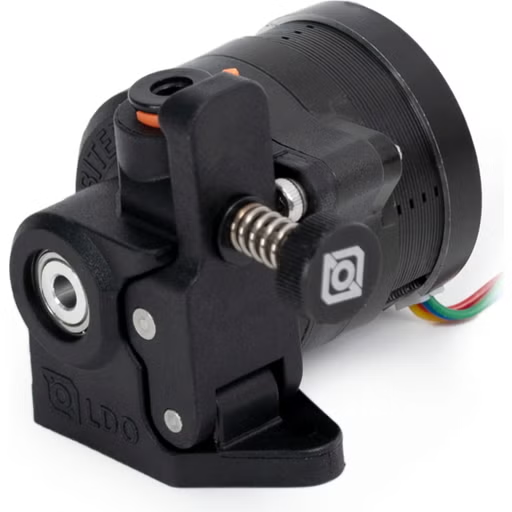
What you’ll need
Before you start the Orbiter Extruder V2.5 install, gather the following items so you don’t have to stop midway.
- A set of hex keys (usually 2 mm, 2.5 mm and 3 mm)
- Phillips screwdriver
- Needle‑nose pliers
- Heat‑resistant gloves
- Clean workspace with good lighting
- Static‑free tweezers (optional)
Having the Orbiter Extruder V2.5 on hand ensures you can compare mounting holes and cable lengths as you work.
Removing the old extruder
Most desktop printers use a single‑gear or geared extruder that bolts directly to the carriage. The removal process is similar across many models, including VzBoT and Voron builds.
- Power off the printer and unplug the mains cable. Wait a minute for the hotend to cool.
- Locate the screws that secure the existing extruder to the carriage. Typically there are two or three.
- Using the appropriate hex key, loosen and remove these screws. Keep them in a small container.
- Disconnect any wiring harnesses. Most extruders use a simple 4‑pin connector; gently pull the plug straight out.
- Slide the old extruder off the carriage. If it feels stuck, wiggle it gently – do not force it.
At this point you have a clean carriage ready for the new unit.
Mounting the Orbiter Extruder V2.5
The upgrade 3D printer extruder step is straightforward because the Orbiter is designed to fit common carriage dimensions.
- Position the Orbiter Extruder V2.5 on the carriage, aligning the mounting holes with those you just cleared.
- Insert the supplied screws (or reuse the ones you removed) and hand‑tighten them. Use the hex key to snug them, but avoid over‑tightening – the extruder should sit flush without wobble.
- Check that the filament path is unobstructed. The Orbiter’s dual‑drive system expects the filament to enter from the top; make sure the guide tube lines up.
If your printer uses a custom bracket, you may need to drill new holes or use the optional adapter that comes with the Orbiter package. In those cases, follow the manufacturer’s drawing.
Wiring and firmware considerations
Most hobby‑grade printers use either a 4‑wire stepper connector and a separate thermistor/heater cable. The Orbiter V2.5 follows this convention.
- Identify the stepper motor wires on the printer’s controller board. They are usually colour‑coded (e.g., red‑black‑green‑blue).
- Plug the stepper connector from the Orbiter into the same socket you just freed. Ensure the pins line up; a mis‑match can cause the motor to run backwards.
- If your printer has a filament sensor, you can connect it to the spare input on the board. The Orbider V2.5 does not require a sensor, but many users add one for extra safety.
- When using Klipper (common on Voron and VzBoT) or Bambu firmware (on Bambu Lab machines), you will need to update the extruder step‑per settings. The exact values depend on your gear ratio; the Orbiter documentation provides a formula. Do not guess – edit the printer.cfg (Klipper) or the appropriate menu (Bambu) and save.
After wiring, power the printer back on and verify that the new motor turns when you command an extrusion test.
Calibrating for reliable filament feeding
Reliable filament feeding is the goal of any multi material extruder guide. The Orbiter’s dual‑drive system reduces slippage, but you still need to set a few parameters.
- Run a short extrusion command (e.g., 10 mm) at a low speed. Observe the filament path – it should move smoothly without grinding.
- If you notice resistance, loosen the tension screws on the drive gears slightly. The Orbiter allows fine adjustment; turn clockwise to tighten, counter‑clockwise to loosen.
- Measure the actual extrusion length against the commanded length. If there is a discrepancy, adjust the steps‑per‑mm value in your firmware until they match.
- For multi‑material printing, perform a purge test with each filament type you plan to use. This helps you confirm that the feeding remains consistent across different diameters and material properties.
Document your final settings so you can restore them after any future firmware update.
Final test and tips
With the hardware installed and the firmware tuned, it’s time for a real print.
- Load a simple calibration cube that uses a single extruder. Watch the first few layers closely.
- Check for under‑extrusion (thin lines) or over‑extrusion (bulging). Small tweaks to flow rate can compensate, but major issues usually point back to tension or steps‑per‑mm.
- Once you’re happy with single‑material performance, try a dual‑material test – for example, a colour‑swap tower. The Orbiter’s design should handle the switch without filament grinding.
Remember to keep the drive gears clean; dust and filament dust can reduce grip over time. A quick wipe with a dry cloth after each print goes a long way.
Congratulations – you have completed the Orbiter Extruder V2.5 install and are now ready for reliable multi‑material printing. Happy making!