How to Diagnose and Fix Common Layer Shifting Problems

Layer shifting shows up as a sudden jump or mis‑alignment in the middle of a print, turning a smooth model into a jagged mess. For beginners, it can feel like a mystery, but the cause is usually something you can see and fix. This guide walks you through the most common reasons for layer shifting, how to spot them, and practical steps to get your printer back to reliable performance.
What Is Layer Shifting and Why It Matters
In simple terms, layer shifting occurs when the printer’s axes move out of sync with the extrusion, causing a slice of the model to be printed in the wrong place. The result is a visible defect that reduces overall print quality and can waste filament. Understanding the root cause is the first step in effective troubleshooting.
Common Causes of Layer Shifting
Most layer shifting problems fall into three broad categories: mechanical, electrical, and software.
Mechanical Issues
- Loose or worn belts – If a belt slips, the axis will lose steps.
- Loose pulleys or screws – Anything that isn’t firmly tightened can shift under load.
- Printer vibration – Excessive vibration from the frame or moving parts can cause the printer to lose position.
Electrical Issues
- Stepper motor driver overheating – Overheating can cause missed steps.
- Power supply fluctuations – Inconsistent voltage can affect motor performance.
Software Issues
- Incorrect acceleration or jerk settings – Too aggressive motion can lead to missed steps.
- Firmware bugs or outdated versions – Occasionally a firmware glitch can cause unexpected movement.
Step‑by‑Step Troubleshooting Guide
- Inspect the belts and pulleys
Turn off the printer and manually move each axis. Look for any slack in the belts and check that pulleys are tight on the motor shafts. Replace any worn belts and re‑tighten all set screws. - Check for frame stability and vibration
Make sure the printer sits on a level, sturdy surface. If the frame wobbles, consider adding dampening pads or tightening any loose frame bolts. Reducing vibration can dramatically improve print consistency. - Examine the stepper drivers
Feel the driver chips for excessive heat after a print. If they’re too hot, improve cooling or consider a driver with better thermal performance. - Review acceleration and jerk settings
High acceleration can cause the printer to skip steps, especially on larger models. Lower these values in your slicer or firmware and run a test print. - Update firmware if needed
If you suspect a software glitch, check the manufacturer’s website for the latest firmware release and follow their update instructions. - Improve bed adhesion
A poorly adhered first layer can cause the nozzle to drag, creating extra stress on the axes. Using a high‑quality build surface can help. The BIQU Panda BuildPlate CryoGrip Pro for Bambu X1/P1/A1 Printers - Double‑Sided 7‑Layer - Glacier provides a reliable, low‑temperature surface that helps the first layer stick without excessive force.
Upgrading Components for Long‑Term Reliability
Sometimes the best way to stop layer shifting is to upgrade a weak link in the system.
Controller Board Upgrade
A more robust controller can handle higher currents and provide better stepper driver cooling. The BIGTREETECH BTT Octopus Pro V1.0/V1.1 For 3D Printer - Octopus Pro V1.1 with Chip H723 is a popular choice that offers advanced driver chips and ample cooling, reducing the chance of missed steps during demanding prints.
Touchscreen for Easier Monitoring
Having clear, on‑board feedback can help you spot issues early. A touchscreen interface lets you pause a print, check temperatures, and run basic diagnostics without needing a computer. The Panda Touch V1.1.1 - 5 Inch Touch Screen with Multi‑Printer, Wireless Control provides an intuitive way to monitor prints and quickly intervene if you notice a shift starting.
Preventive Maintenance Checklist
Keeping your printer in good shape is the most reliable way to avoid layer shifting.
- Check belt tension weekly.
- Inspect pulleys and set screws for tightness before each major print.
- Clean the build plate and ensure it’s free of debris.
- Run a short test print after any firmware update.
- Keep the printer environment stable – avoid drafts and sudden temperature changes.
Conclusion
Layer shifting is a common but solvable print defect. By systematically checking mechanical connections, reducing vibration, managing driver temperatures, and fine‑tuning motion settings, beginners can quickly restore reliable print quality. Upgrading key components such as the controller board or adding a quality build plate can further protect against future issues. With a regular maintenance routine and the right accessories, you’ll spend less time troubleshooting and more time creating great prints.
Featured in this post
BIQU Panda BuildPlate CryoGrip Pro for Bambu X1/P1/A1 Printers - Double-Sided 7-Layer - Glacier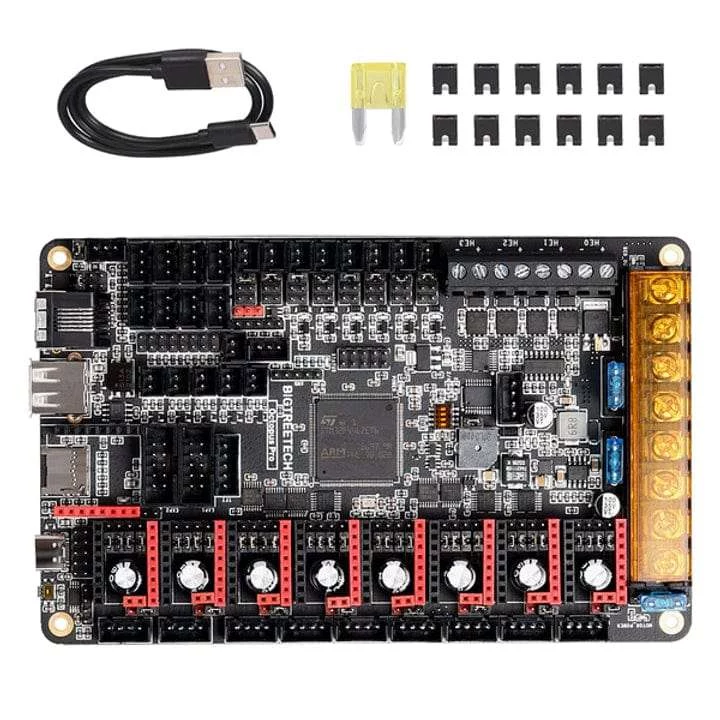
BIGTREETECH BTT Octopus Pro V1.0/V1.1 For 3D Printer - Octopus Pro V1.1 with Chip H723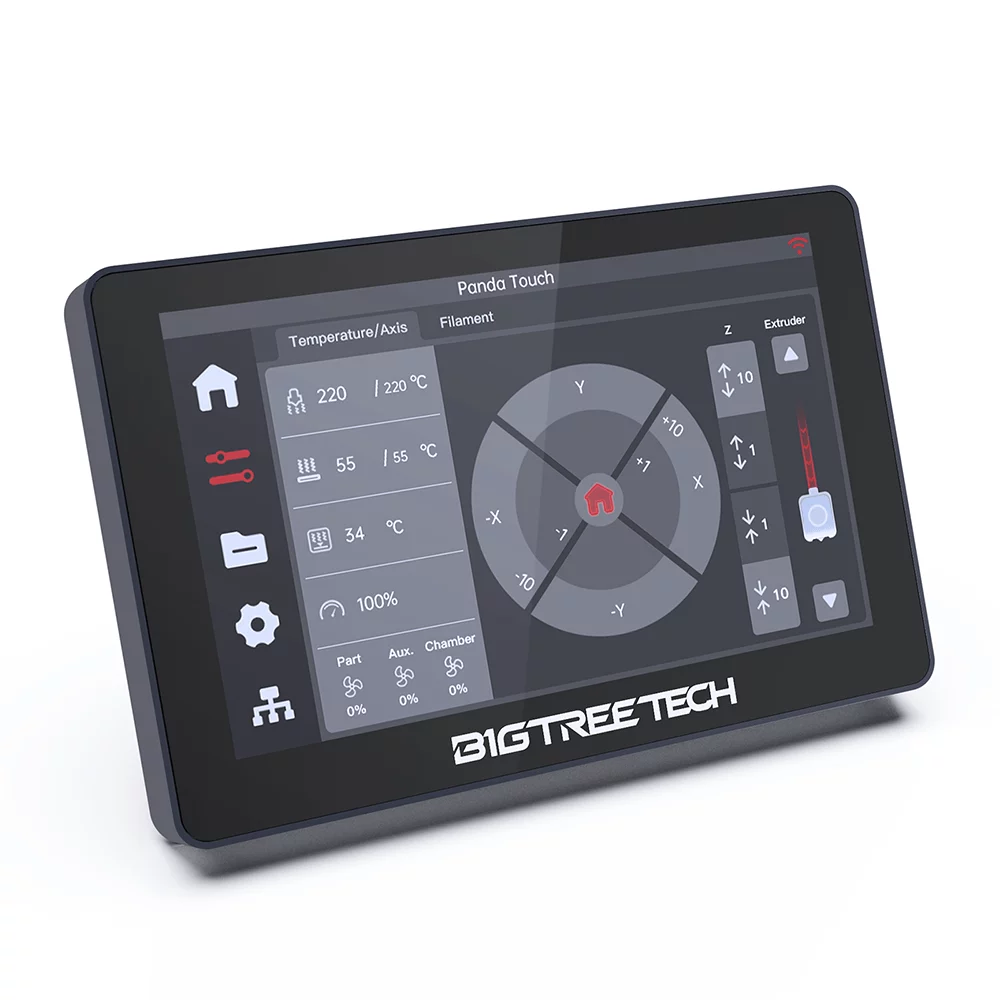
Panda Touch V1.1.1 - 5 Inch Touch Screen with Multi-Printer, Wireless Control For Bambu Lab X1, P1 and A1 Printers - Panda Touch V1.1.1